Social Connector

Universal messenger connector for Bitrix24

✅ Successfully Installed & Active

Quick Setup Guide

Follow these simple steps to start receiving WhatsApp messages

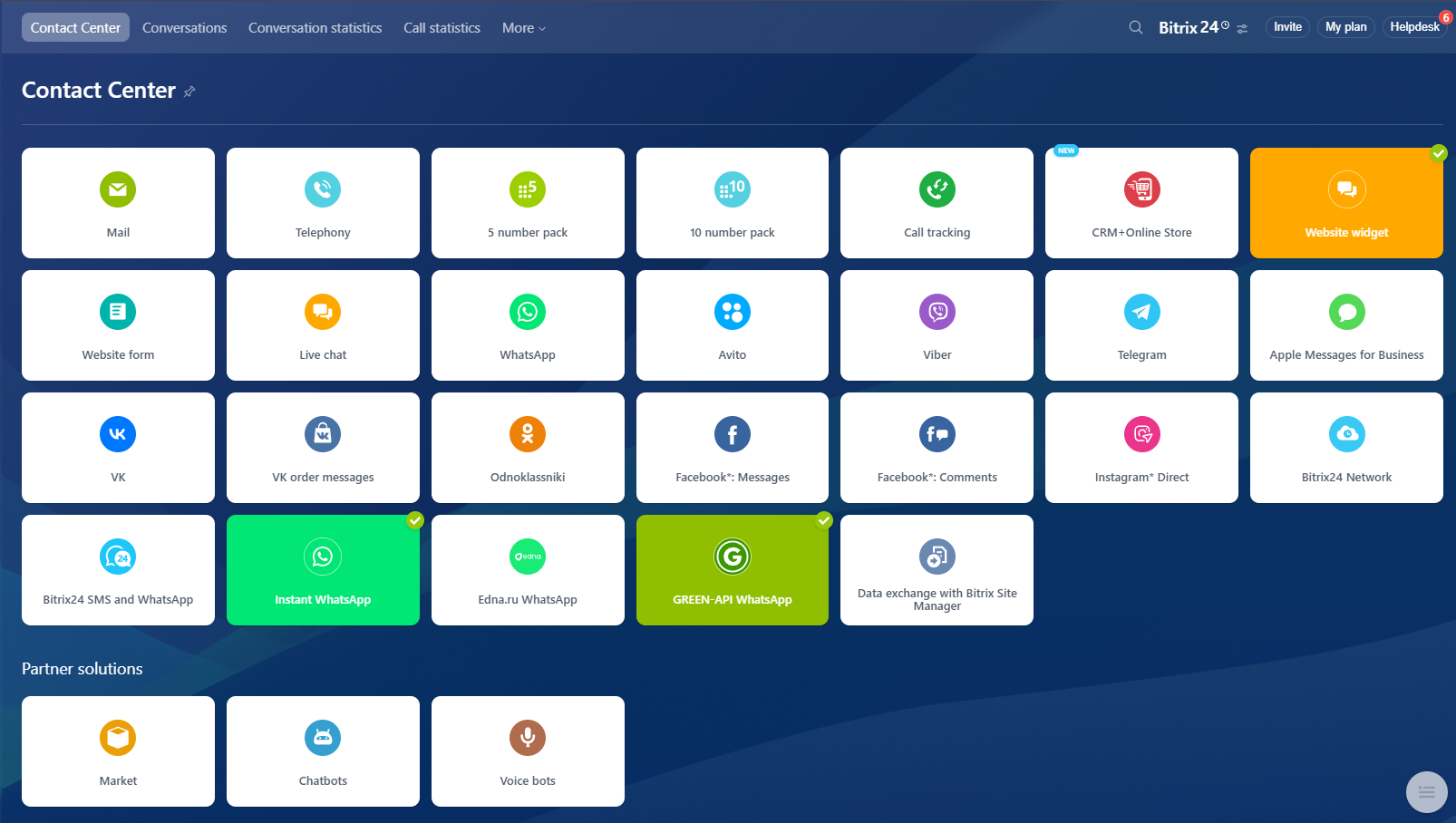
Step 1: Open Contact Center

Navigate to Contact Center in your Bitrix24 menu. This is where all your customer communication channels are managed.

Open Contact Center →
1
🏢
Contact Center Dashboard

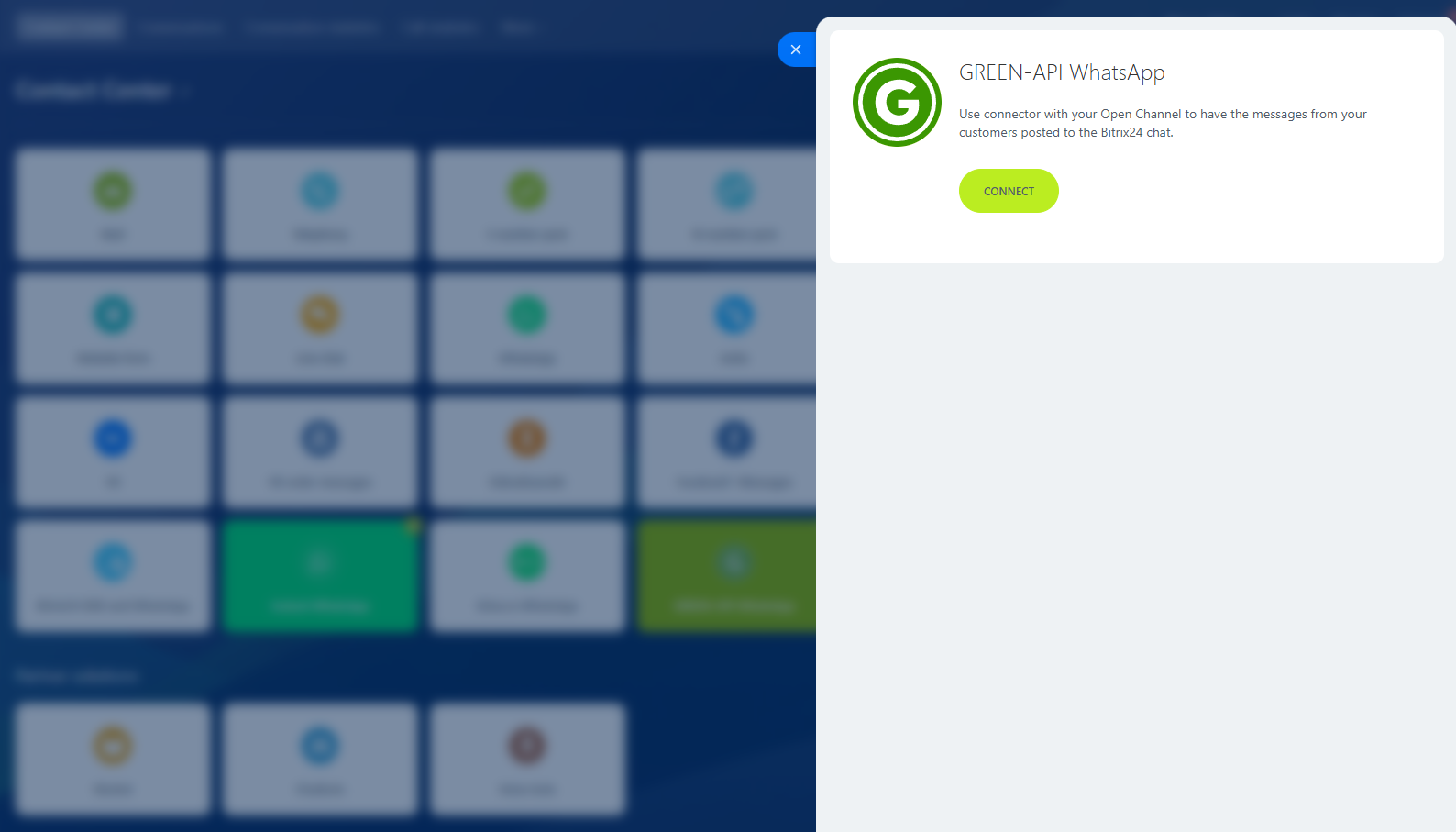
Step 2: Find Social Connector

Look for the Social Connector in your available connectors list. It should show as installed and ready to configure.

Go to Connector →
2
📱
Social Connector

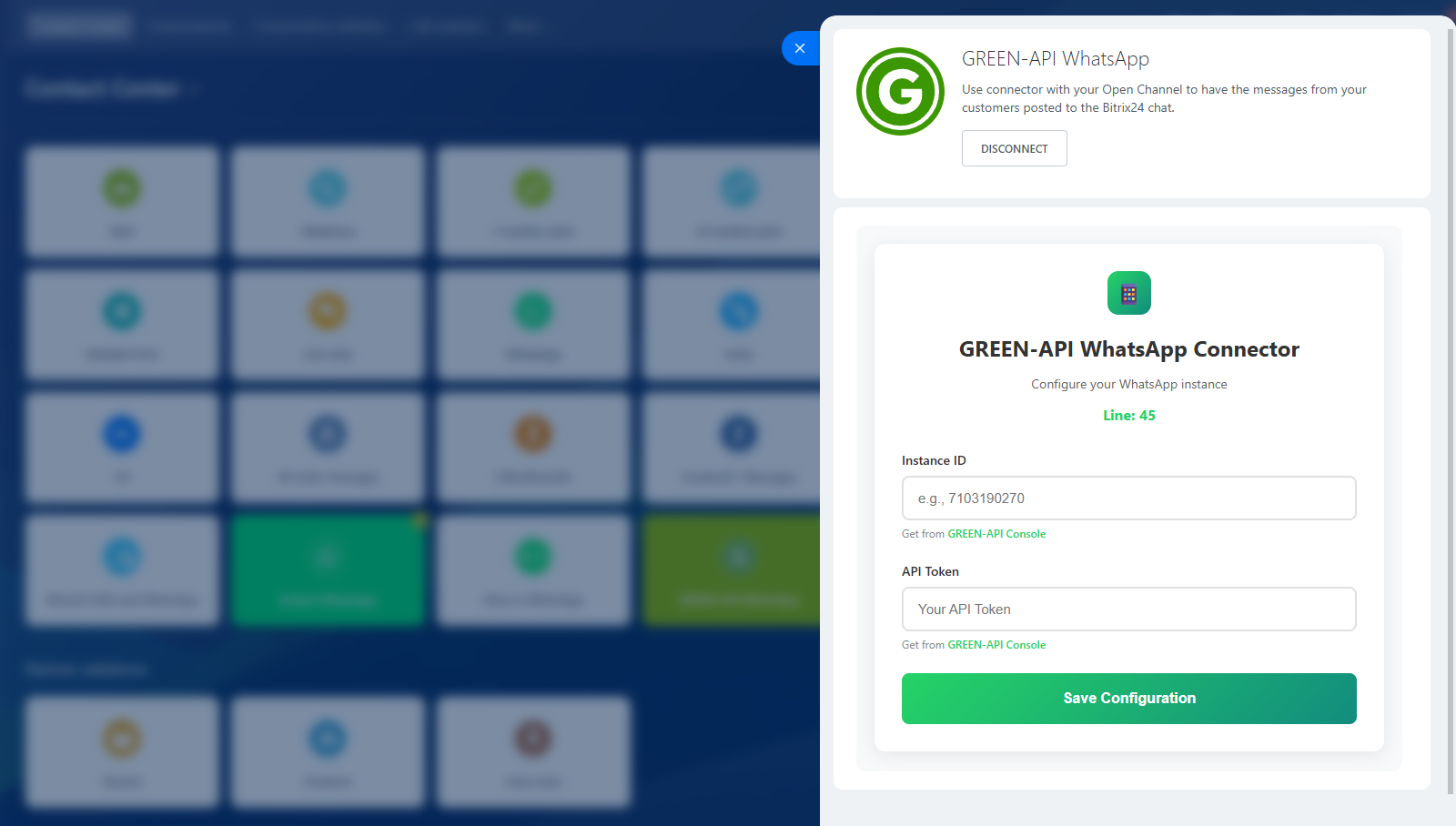
Step 3: Configure Settings

Enter your GREEN-API Instance ID and API Token from your console.green-api.com account.

Get Credentials →
3
🔧
Configuration Panel

Step 4: Test & Start Chatting

Send a test message to the number you connected to your instance to verify the connection. Once working, your team can receive and respond to WhatsApp messages directly in Bitrix24!

✅ You're all set!
WhatsApp messages will now appear in your Contact Center.